
Nova makes it easy to add standard container images to your environment. Such standard images include the Mosquitto MQTT broker, the Node-RED programming environment, and the PostgreSQL and Microsoft SQL Server Express databases. This article explains how to add such containers and how to configure and interact with them.
Enabling Docker
Before adding a container, you should make sure Docker is enabled within the SDK container. Nova itself uses Docker to separate and secure its own subsystems, but enabling Docker in the SDK container creates a “docker-in-docker” environment where custom containers can operate under Nova’s control.
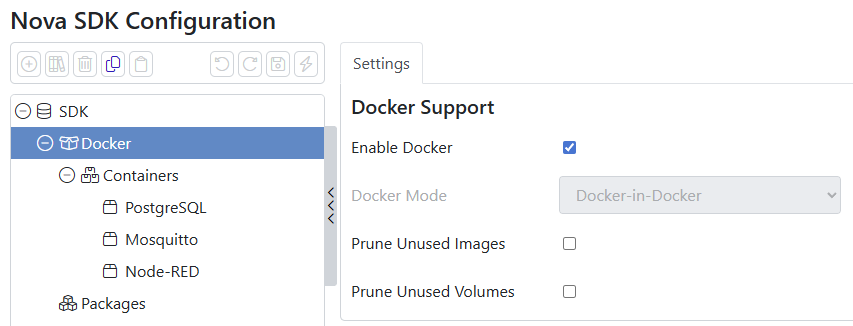
To enable Docker, navigate to Docker section of the SDK configuration, and check the Enable Docker box. You may then save and commit your changes. Note that your device must have access to the Internet when this step is performed, as it must download and install packages from the Alpine repos.
Adding a Container
To add a standard container, navigate to the Containers list and click on the library icon in the toolbar. A dialog box will be displayed, listing the standard container definitions that are included with your installation. Select the container to add it to the list.
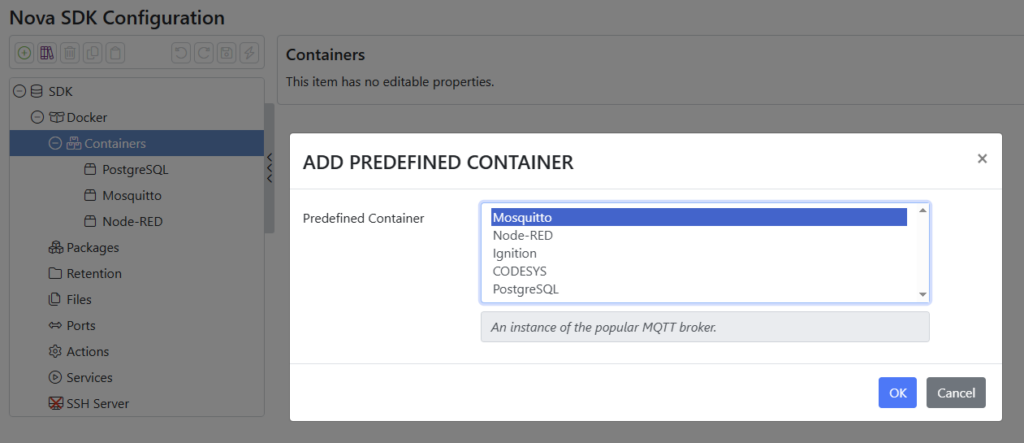
(Note that the CODESYS container does not contain a CODESYS image, but rather provided a Debian environment into which the package may be installed. Refer to other documentation for details on how to complete and license the installation.)
When you save and commit the changes. Nova’s SDK subsystem will download the required image, and then create and start the container. As above, your device must typically have access to the Internet in order to complete this step.
Accessing Services
Most containers expose one or more services via UDP or TCP ports. These ports can always be accessed by other containers in the SDK’s container list but to access them from other Nova subsystems that they be exported. Most container definition thus export the required ports using the Ports tab.
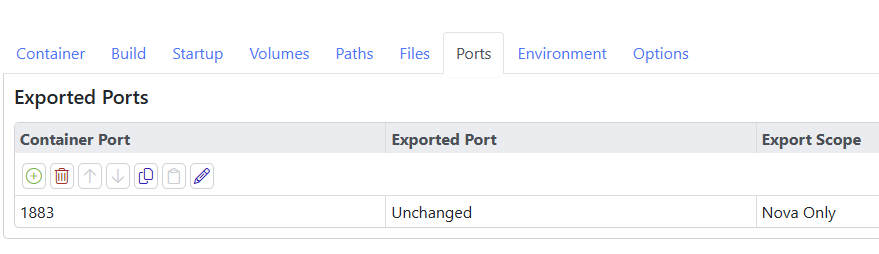
When a port is exported with a scope of Nova Only, other Nova subsystems can access the service, but external traffic is blocked. In the example above, an MQTT broker is exporting port 1883 to containers such as the Nova communications subsystem, from which it can be accessed using the sdk.nova host name by applications such as the SparkplugB network protocol. To permit port access from other devices, set the scope to External. In this example, such a setting would allow another device to publish to the broker. For database containers, enabling external access is often required to allow a suitable management tool to be used.
Configuring the Container
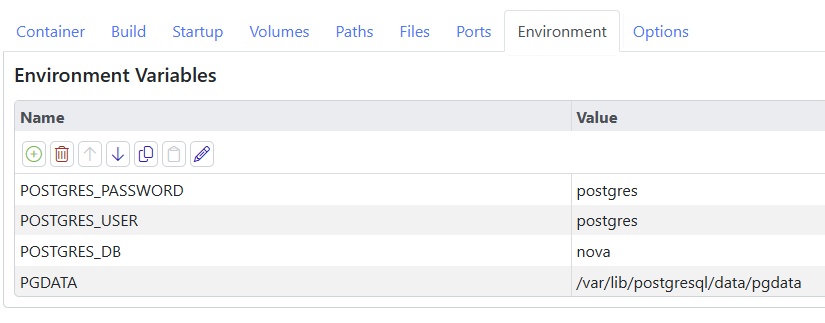
Containers are typically configured in two distinct ways. The first is by defining a number of environment variables that the image uses to control its behavior. PostgreSQL, for example, uses several such variables. These can be edited on the Environment tab of the container configuration. Refer to the image’s documentation for information on what settings are available.
Other images use a configuration file, and this will typically be found on the Files tab of the container configuration. The file can be modified in the Nova editor. It will be injected into the container before it is started. As above, refer to the image’s documentation for details on configuration file options.
