
Modern web browsers want to use TLS to talk to websites, as indicated by the https prefix on a URL. When using a TLS connection, the browser will check the IP address or hostname of the server against the list of names provided in the site’s certificate, and if they do not match, an error will be displayed. These errors are more than just annoying, as they stop block features of the web browser, thereby limiting your editing experience.
To avoids this issue, Nova dynamically generates a certificate for your device, and this certificate will by will include the device’s hostname and any IP addresses that it may obtain either via DHCP or via static configuration options and that are within the well-known public IP ranges. (You can also add additional names or IP addresses via the SANs tab in the Identity section of the network configuration.)
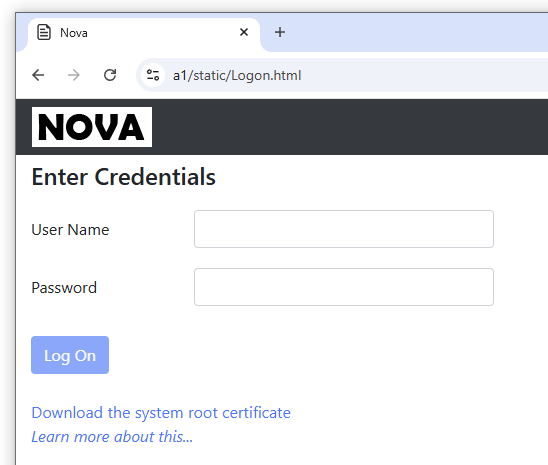
However, it is not enough for Nova to simply generate the certificate: You must also trust it by installing the root certificate by which it was signed. This certificate can be downloaded from the log on screen by clicking on the link entitled “Download the system root certificate.” (Note that you may have to tell your browser to keep the file, as some browsers consider certificates to be dangerous and therefore limit their accessibility.)
Once the file has been downloaded, open it and you should see something similar to:
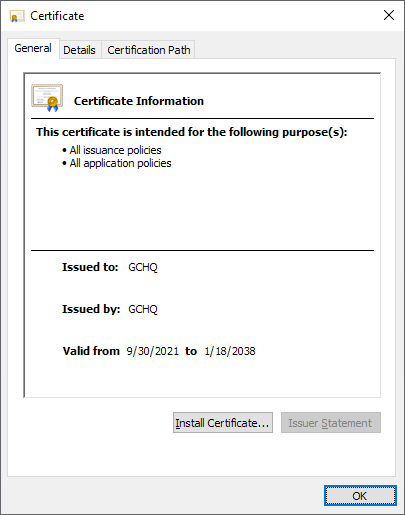
Click on the button labelled Install Certificate and choose Current User.
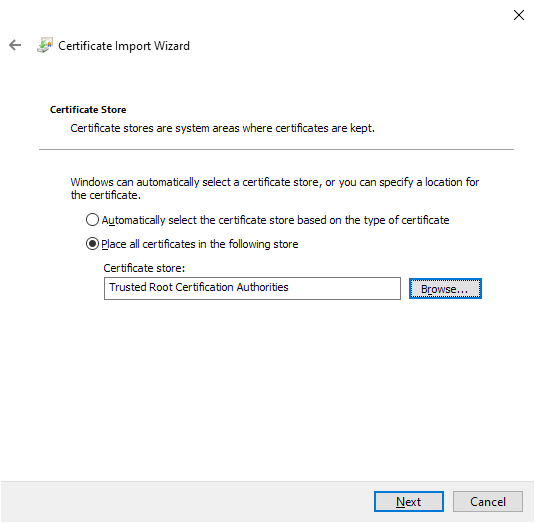
When prompted as to where to store the certificate, select the following options:
After you have installed the certificate, close any active browser windows and then navigate once again to the Nova log on screen. The certificate error should now have been removed.
