
In production, Nova can run on any ARM- or Intel-based hardware running any popular Linux distro. But for development and demonstration purposes, it is useful to be able to run it on a Windows PC. One way of doing this is to create a custom virtual machine under Hyper-V and then install the applicable Nova image, but it is much easier to use the Windows Subsystem for Linux or WSL. This subsystem was added to Windows a few years ago, and is a mainline feature of both Windows 10 and Windows 11. It creates a lightweight VM that can run a Linux distro that can be tightly integrated with your Windows environment, thereby giving you the advantages of both Windows and Linux on a single machine.
You can learn more about WSL at Microsoft’s website.
Installing Nova
- Download a copy of the
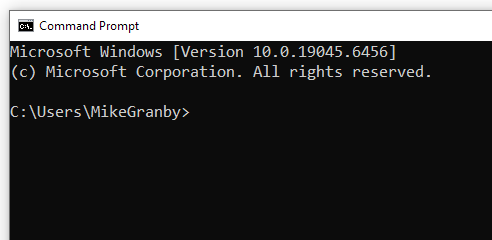
NovaWslDefault.exefile. - Open a Windows command prompt, and note that you are in your personal home directory:
- Create a subdirectory under your home directory by running the
mkdir Novacommand. - Change into that directory by running the
cd Novacommand. - Using Windows Explorer, navigate to the folder where you downloaded
NovaWslDefault.exe - Right-click the file and select Copy to place it on the clipboard.
- Return to your command prompt.
- Open a Windows Explorer window in that directory by running the
start .command. - Press Ctrl+V or right-click and select Paste to place the application in that directory.
- Return to your command prompt once more.
- Run the
NovaWslDefault registercommand to install Nova.
If you do not already have WSL installed, the Nova WSL application will install it for you.
Running Nova
Once you have installed and registered Nova, you can run it by opening a command prompt, running the cd Nova command to change to the Nova subdirectory, and then running the WslNovaDefault run command. The command will take a little longer the first time it is executed, but after a delay, the it will print the IP address of the Nova instance and open the Nova web interface in your default browser.
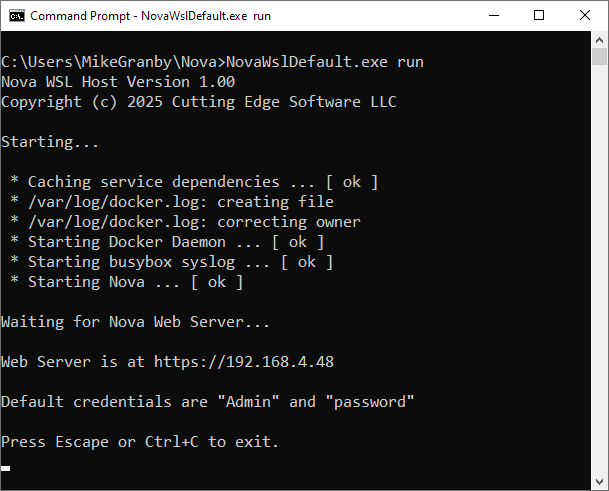
From there, you can log and start using the platform. The default credentials are Admin and password, the latter in lower-case. You will prompted to change your password on first log on. To shutdown Nova, press Escape or Ctrl+C in the command prompt. If the Nova instance times-out because it it not licensed, the Nova WSL application will display an error message and also exit. For more information on obtaining a license for your installation, see this article.
When running under WSL, Nova does not attempt to control the networking of your PC as it would if it were running on an embedded device. You will thus see dummy network adapters that do not actually exist within the lightweight VM. You may experiment with the settings of these adapters, but they will have no impact on your PC’s network settings. These will continue to be controlled by Windows.
Upgrading Nova
To upgrade Nova under WSL, you have two options: The simplest way is to download the required Alpine VM build from the Downloads page, and install it using the Nova UI, just as if you were updating a physical device. The alternative method is to download the associated version of the Nova WSL application and run it using the NovaWslDefault update command. This will update your WSL distro to contain the new version. The former method is preferred since it is allows easier switching between versions without needing to keep lots of copies of the Nova WSL application available.
