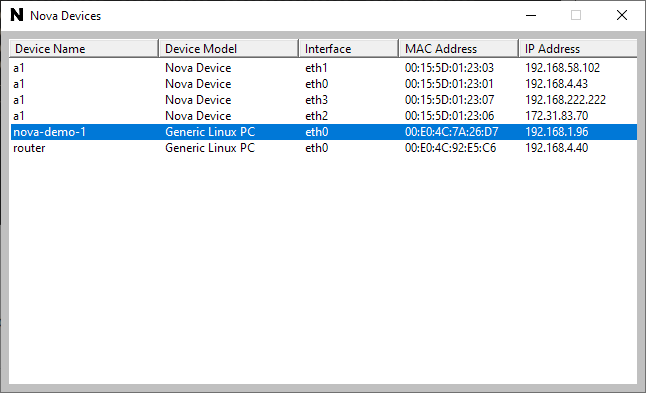
When you have a device with Nova installed, it may not always be obvious which IP address has been allocated to it and thus how to access it. This article explains how to use the NovaFind and NovaTray tools to find devices on your network.
Downloading the Utilities
The download links are:
NovaFind— A command line utility for listing devices on the local network; andNovaTray— A Windows system tray utility for performing the same function.
After you download the files, copy them to:
%USERPROFILE%\AppData\Local\Microsoft\WindowsApps
Running the Utilities
The directory specified above is on the Windows path and so you can run either utility from a command prompt simply by typing its name. Upon first execution, you will be prompted to allow firewall access. If you do not allow this, the utility will not function correctly, so be sure to grant access.
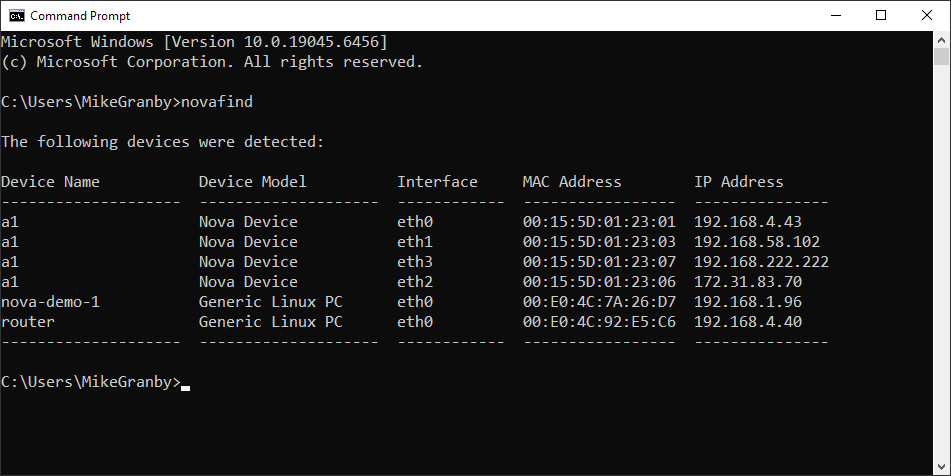
NovaFind will produce a list of discovered devices in your command prompt window.
NovaTray will install itself in the system tray at the right-hand side of the task bar. Clicking on the icon or pressing Win+Alt+N will open the utility and show the discovered devices. Double-clicking a device or pressing Enter while it is selected will open a web browser to allow access to its user interface. Right-clicking on the icon tray will allow you to configure the application to run automatically on startup. You can also enable or disable popup notifications when new devices are discovered.